
Lesson Series
AI-generated, coherent lesson series with intelligent planning support.
The Lesson Series feature enables teachers to create complete, pedagogically sound lesson series with just a few clicks. The AI analyzes the chosen topic, suggests an optimal structure, and generates detailed lesson plans for each individual session.
The Workflow in 10 Steps
1. Start Topic Analysis
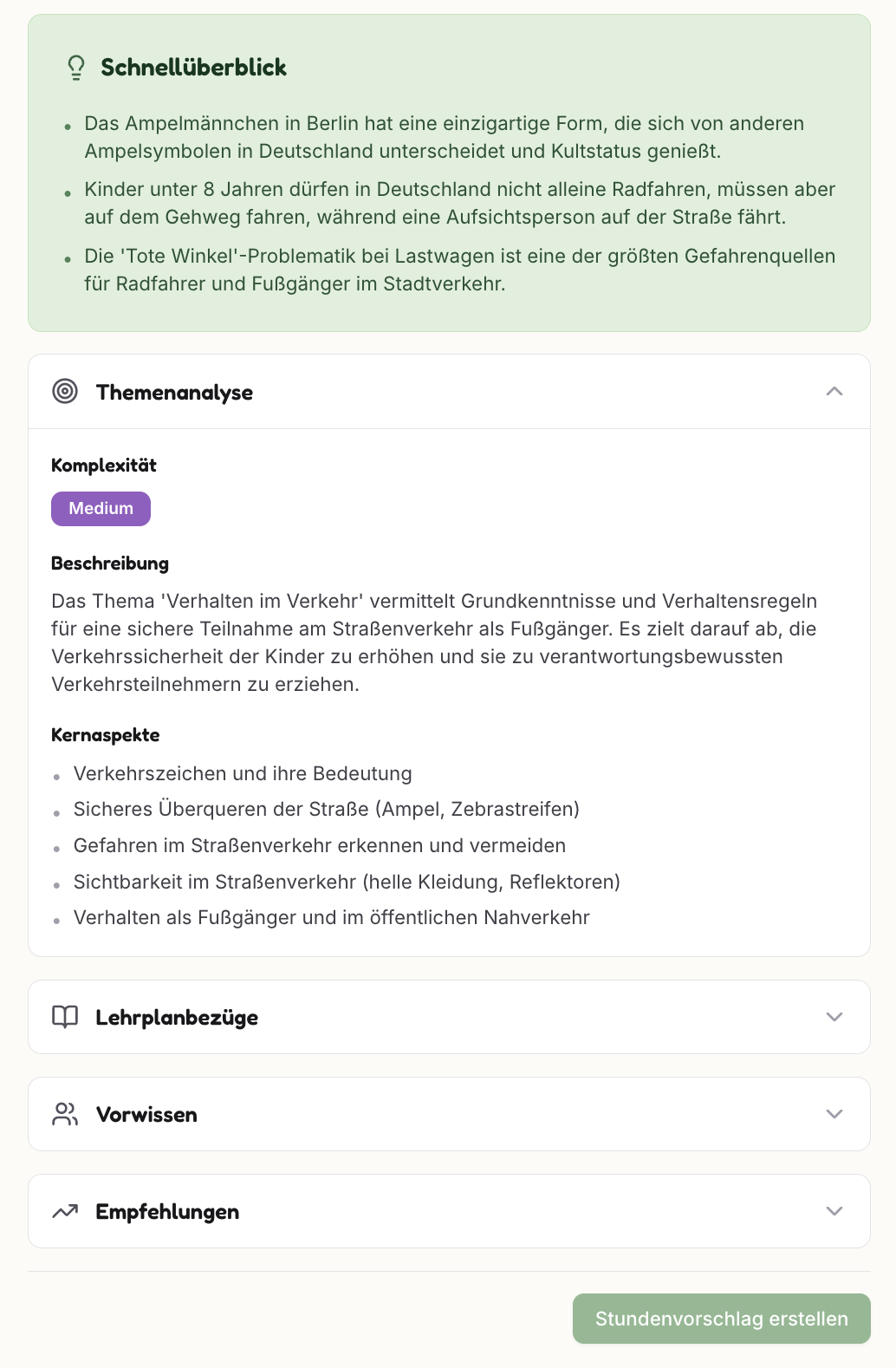
After entering your topic, the AI analyzes:
- Quick Overview: Interesting facts and context about the topic
- Complexity: Assessment (Easy/Medium/Hard)
- Core Aspects: Key content that should be covered
- Curriculum References: Relevant standards and competencies
- Prior Knowledge: What students should already know
- Recommendations: Pedagogical suggestions
2. Start Generation
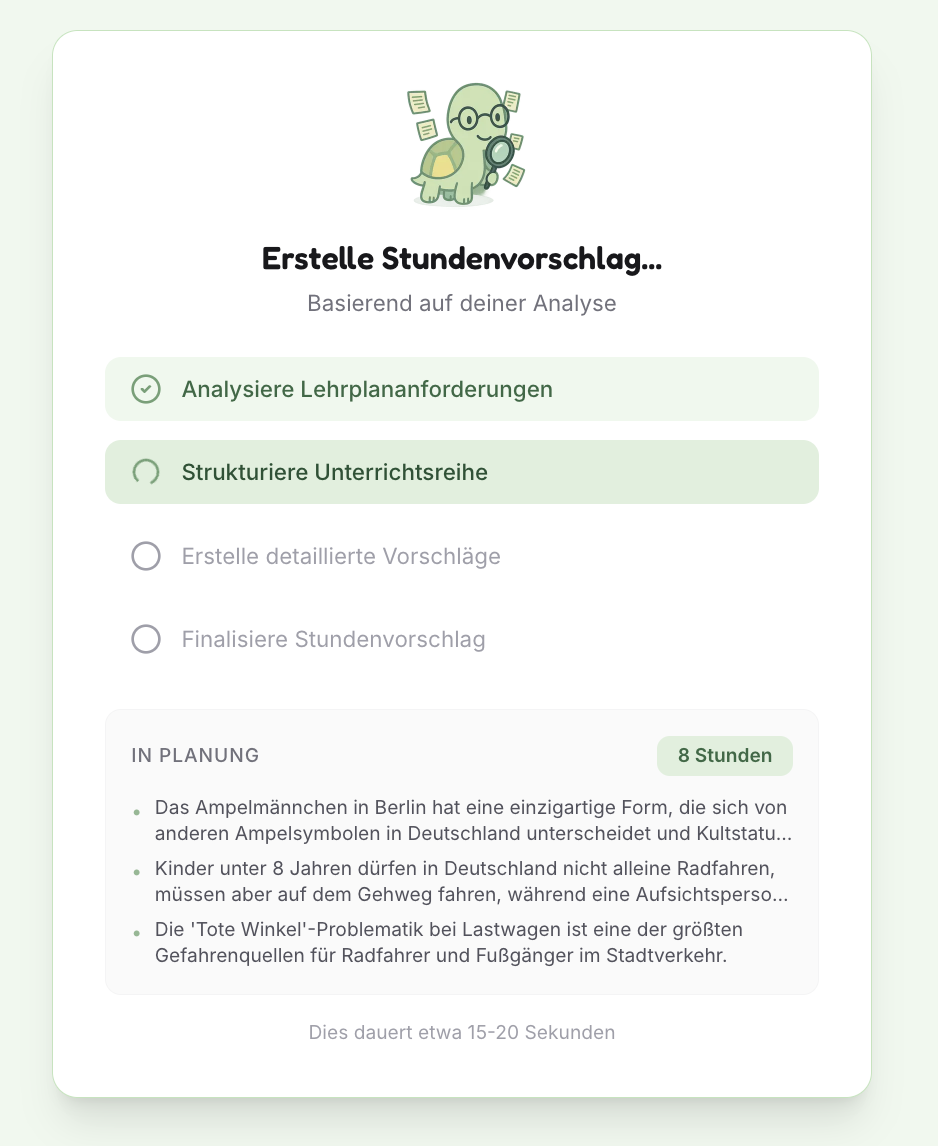
Clicking "Create Lesson Proposal" starts a 4-step process:
- ✓ Analyze curriculum requirements
- → Structure lesson series
- ○ Create detailed proposals
- ○ Finalize lesson plan
The analysis takes approximately 15-20 seconds.
3. Structure the Series
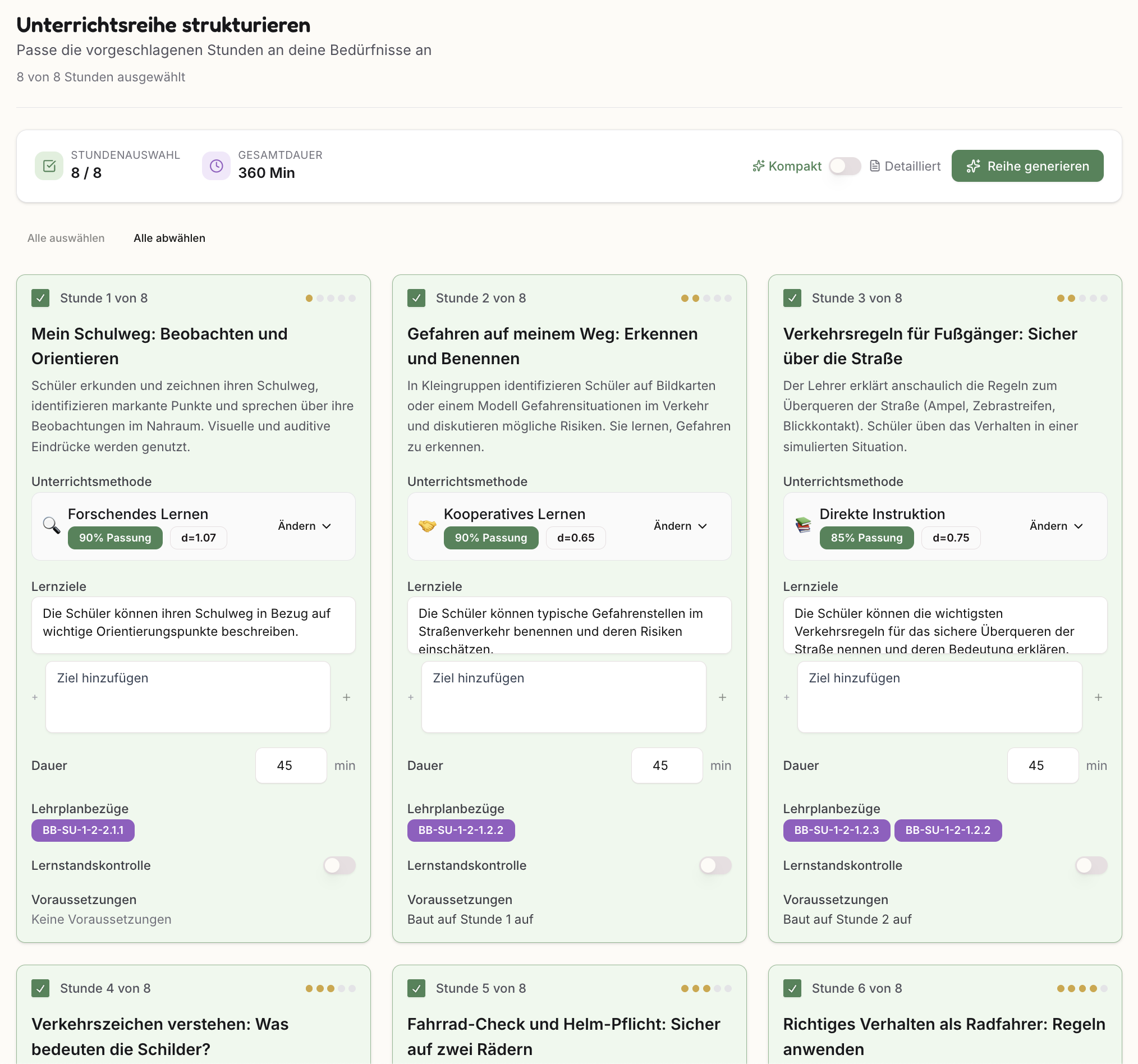
The AI proposes a structure (e.g., 8 sessions of 45 min each). For each lesson, you see:
- Title and description of the session
- Teaching method with fit score and effect size (Cohen's d)
- Learning objectives with ability to add more
- Curriculum references (e.g., BB-SU-1-2-2.1.1)
- Prerequisites: Which lessons must be completed first
- Duration: Adjustable per session
The top shows the overall summary: Lesson selection (8/8) and total duration (360 min).
4. Adjust Methods
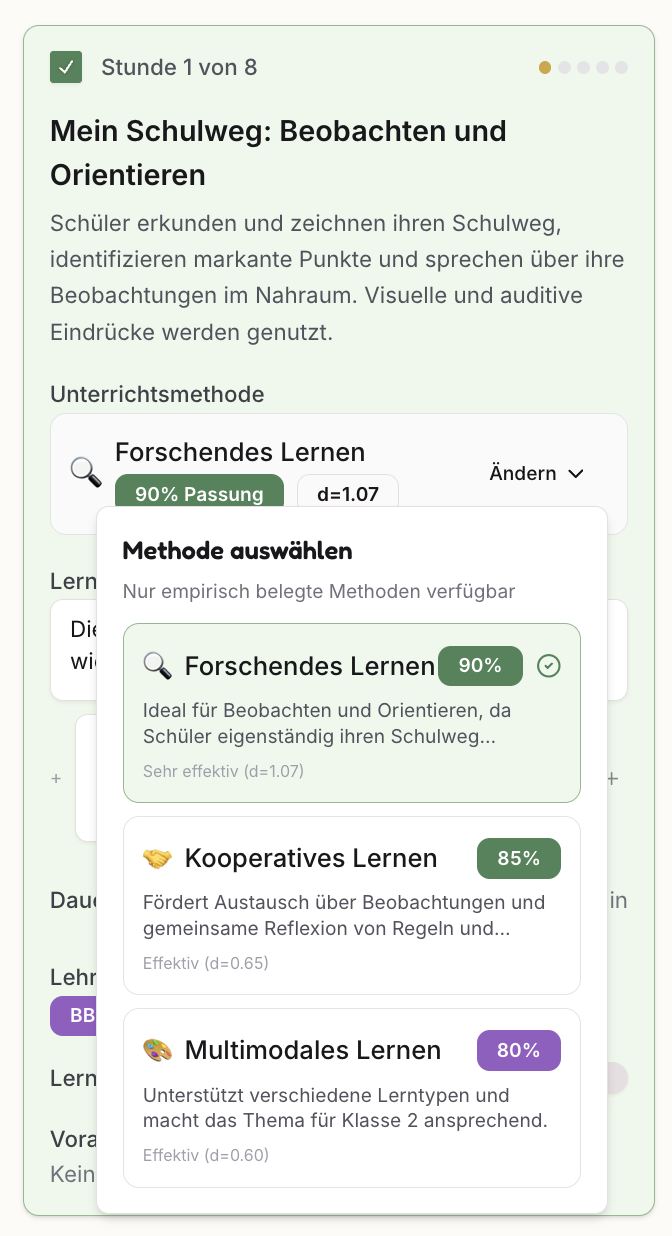
For each lesson, you can choose from empirically validated teaching methods:
- Inquiry-Based Learning (90% fit, d=1.07) – Very effective
- Cooperative Learning (85% fit, d=0.65) – Effective
- Multimodal Learning (80% fit, d=0.60) – Effective
- Direct Instruction (85% fit, d=0.75) – Very effective
The fit score shows how well the method matches the topic. Effect size (d) is based on Hattie's meta-studies.
5. Generate Series
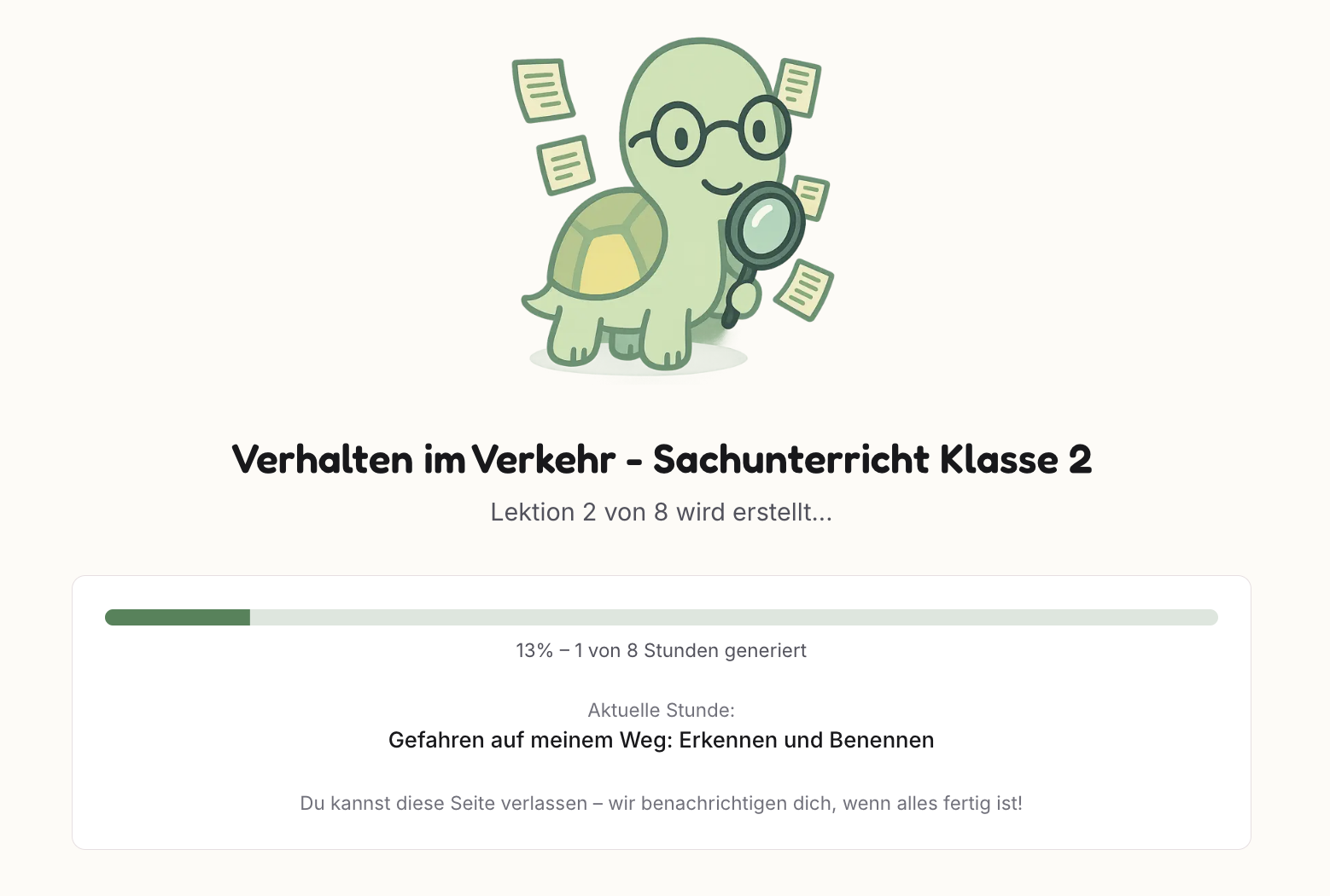
After clicking "Generate Series," all lessons are created sequentially:
- Progress bar shows current status
- Current lesson is displayed
- Important: You can leave the page – we'll notify you when everything is ready!
6. Completed Overview
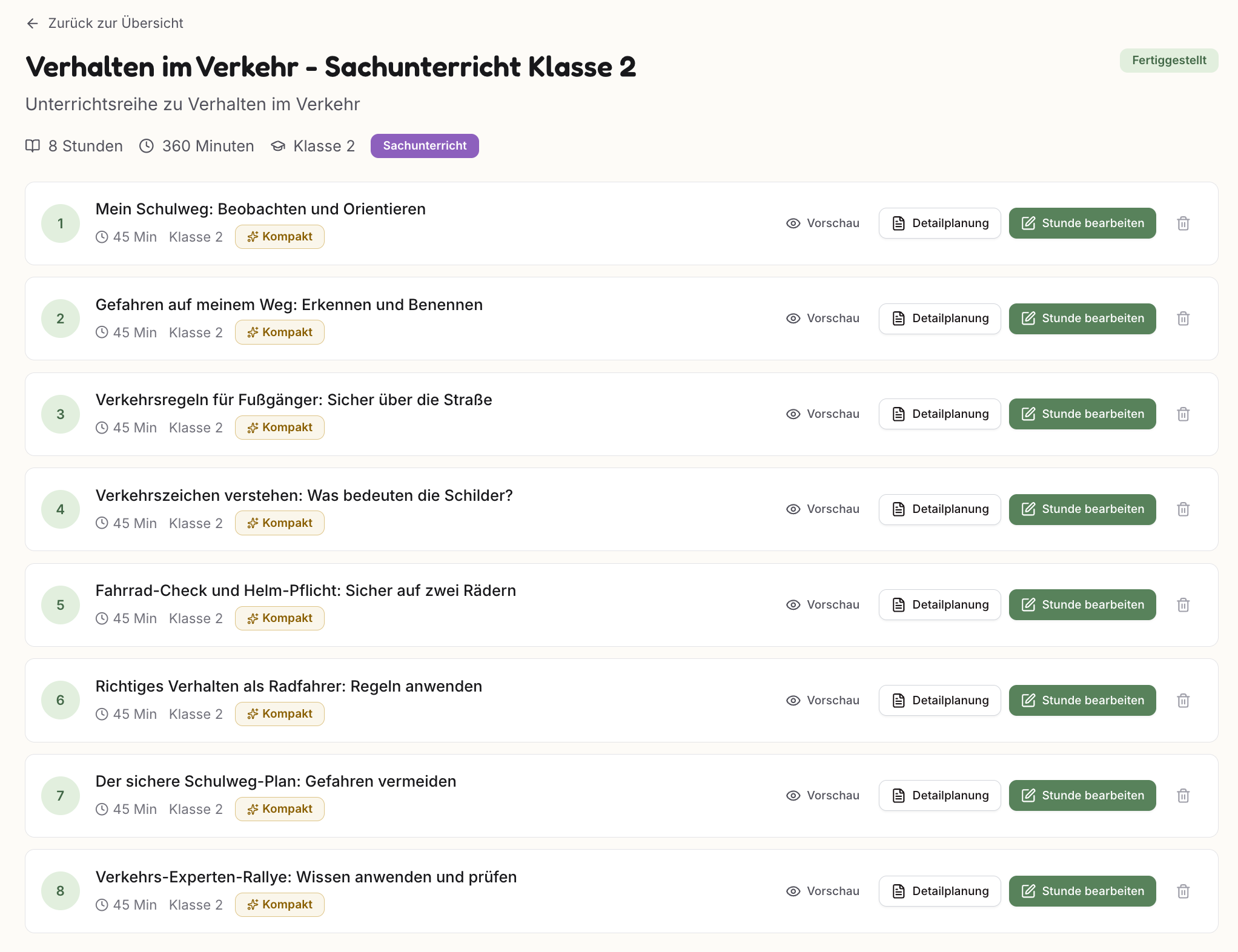
After completion, you see all generated lessons at a glance:
- "Completed" status in the top right
- For each lesson: Preview | Detailed Planning | Edit Lesson
- "Compact" badge shows the generation mode
7. Lesson Preview
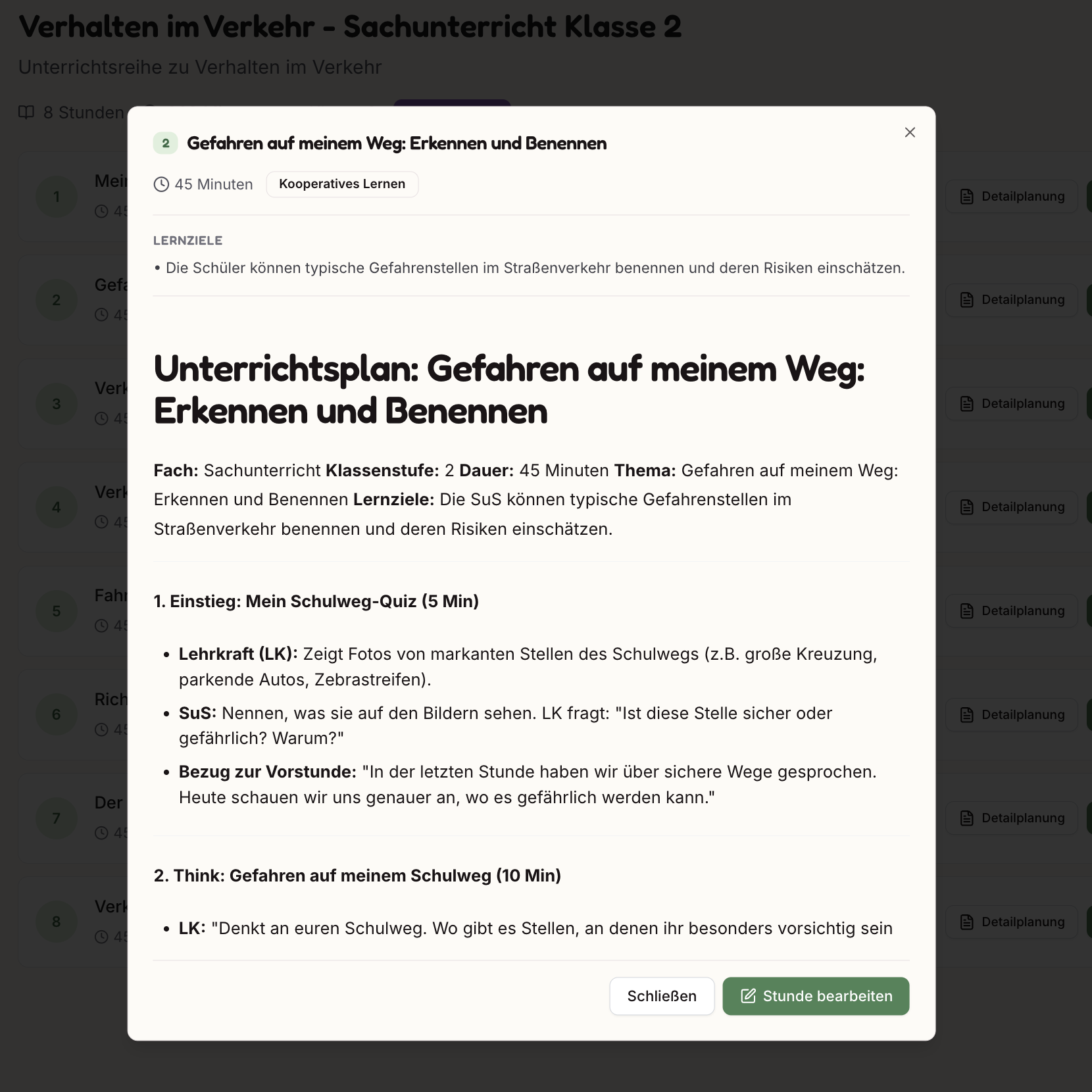
The preview shows:
- Learning objectives
- Teaching method
- Complete lesson plan with phases (Introduction, Think, etc.)
- Buttons: "Close" or "Edit Lesson"
8. Compact Editor
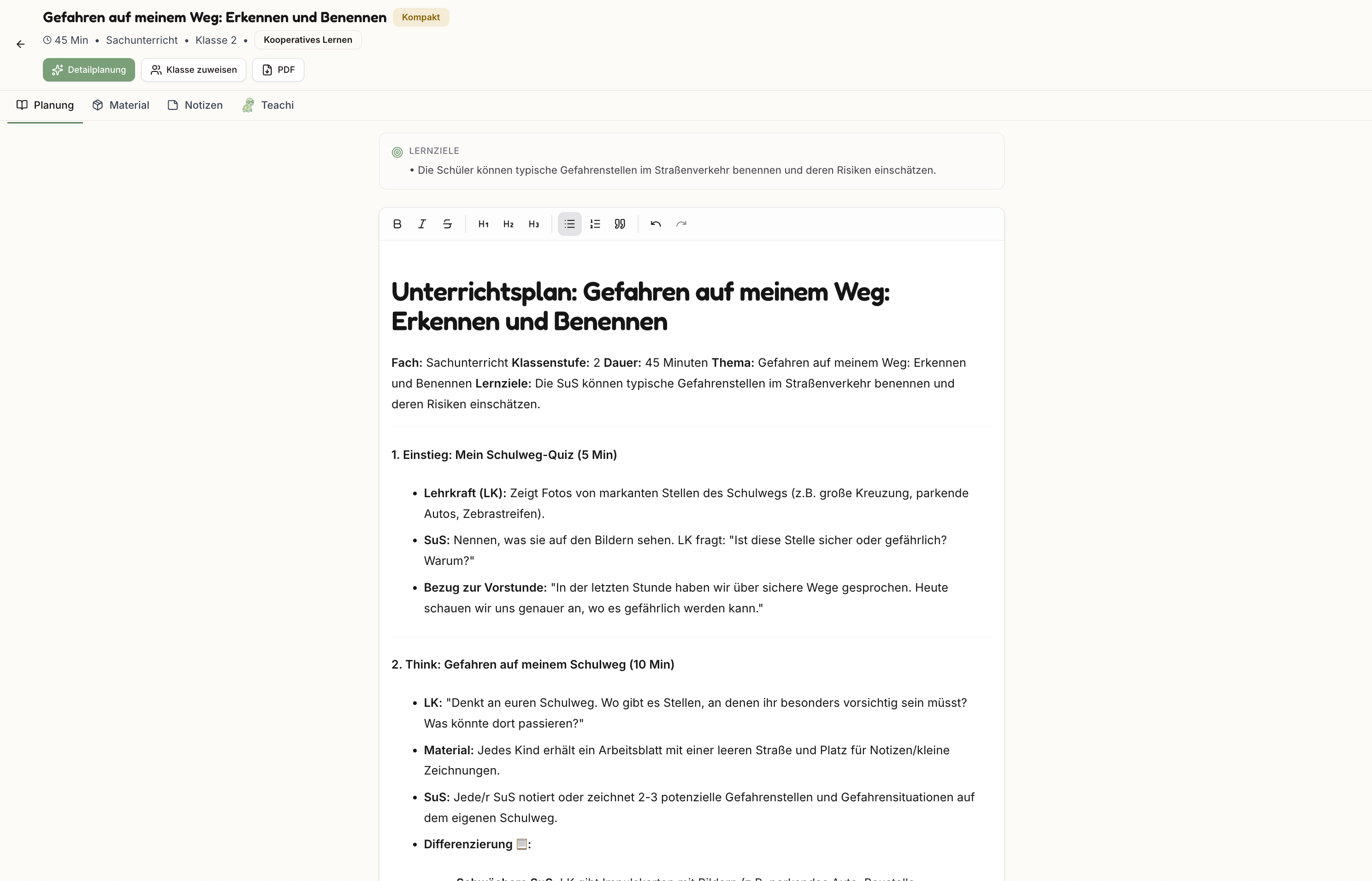
In the compact editor, you can:
- Edit learning objectives
- Edit the lesson plan as structured text
- Switch between tabs: Planning | Material | Notes | Teachi
9. Activate Detailed Planning

Clicking "Detailed Planning" expands the compact lesson into a fully elaborated lesson plan.
10. Full Detailed Planning
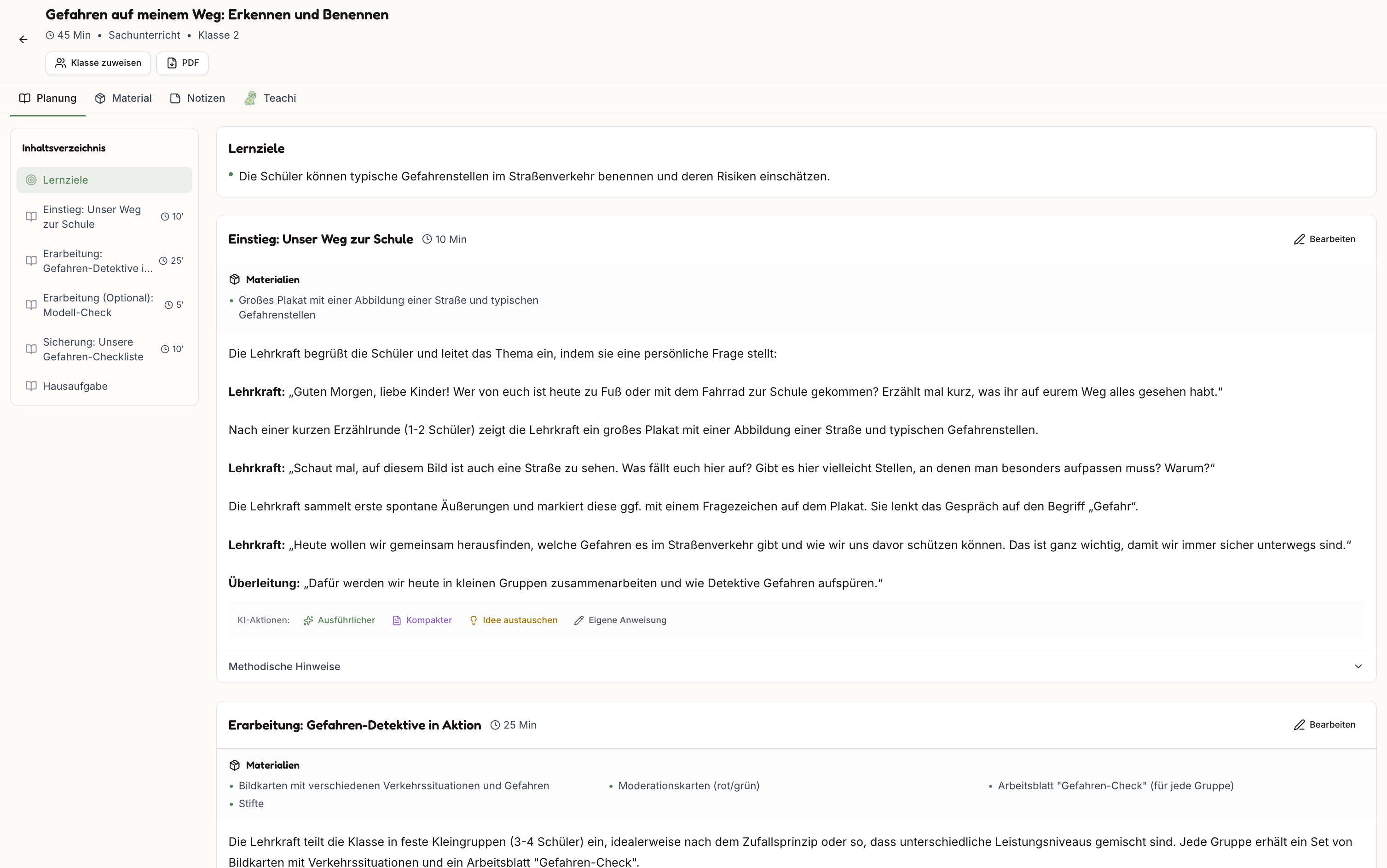
The detailed plan includes:
- Table of contents (left): Objectives, Introduction, Development, Review, etc.
- Phases with timing: Introduction (10 min), Development (25 min), etc.
- Materials per phase: What's needed?
- Teacher dialogues: Specific phrases to read aloud
- AI Actions: More detailed | More compact | Swap idea | Custom instruction
Technical Details
Generation
- Two modes: Compact (fast) and Detailed (comprehensive)
- Background generation: Lessons are created sequentially in the background
- Notification: Email/push when complete
Teaching Methods
Empirically validated methods based on:
- Hattie's Visible Learning meta-studies
- Cohen's d effect sizes
- Fit to specific topic via AI analysis
Curriculum References
- Automatic recognition of relevant curricula
- Coding by state (e.g., BB = Brandenburg, Germany)
- Connection to Curriculum RAG system